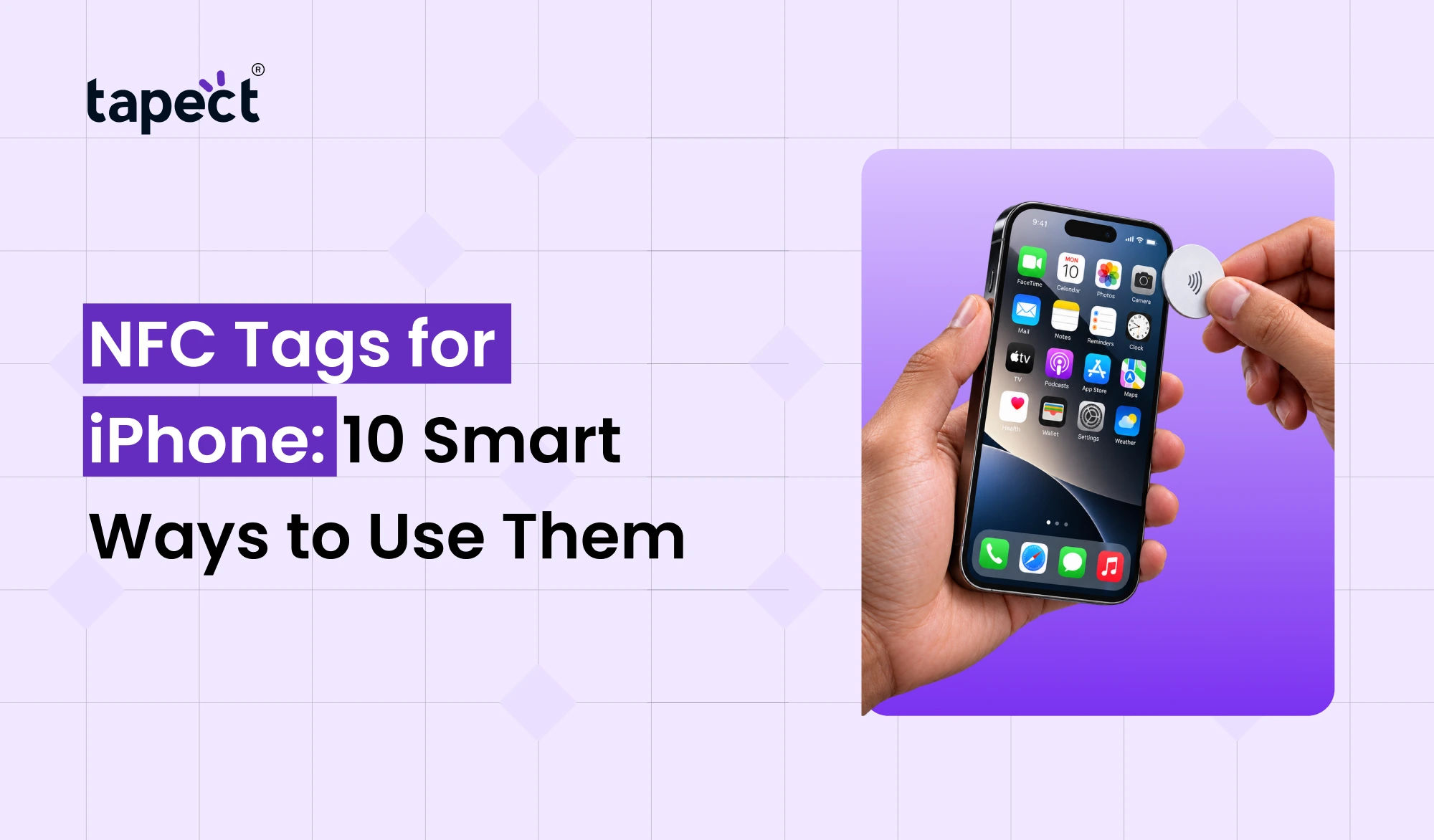
Want to turn on your Wi-Fi, open a website or share your contact details with a single tap? You can do many of these things using NFC. If you have an iPhone, NFC tags can help make your daily tasks easier and save you time.
NFC Tags for iPhone are small chips that can activate actions when your phone scans them. You can put these tags at home, at your office, in your car or on your desk. Once configured, they can help automate simple tasks without opening multiple apps.
The best part is you don’t have to be a tech guru to begin with. In this guide we’ll look at 10 clever ways to use NFC tags, how to set them up and give you some practical tips to help you get more from them.
What Are NFC Tags for iPhone?
NFC means Near Field Communication. It is a wireless technology that enables two compatible devices to exchange small amounts of data over a short distance.
The majority of NFC Tags for iPhone are small chips with an antenna. When you bring a compatible iPhone near a tag, it can read the information stored on it or perform a supported action.
For example, an NFC Tags for iPhone can launch a website, display contact details, or run a shortcut you created.
Typical uses are:
- Opening a website or online form.
- Connecting to a digital business card.
- Running a shortcut on your iPhone.
- Sharing contact details.
- Starting a simple home or office routine.
Most iPhone models are NFC-ready, but what you can do with it is dependent on your model, what version of iOS you’re running, and what you want to do.
How to Use NFC Tags on an iPhone
You’ll need a compatible NFC tag and iPhone with the capabilities needed before experimenting with these ideas.
- Buy a compatible, writable NFC tag.
- Open the Shortcuts app on your iPhone.
- Go to the Automation section and create a new automation.
- Choose NFC as the trigger.
- Scan your tag by holding your iPhone close to it.
- Add the action you want the tag to perform.
- Test the setup to make sure it works correctly.
Some tags are simply for sharing a link or contact info. Others can launch actions with the Shortcuts app. What you want to achieve dictates where you set up.
10 Smart Ways to Use NFC Tags for iPhone
1. Open Your Favourite Website
Is it the same website you go to every day? An NFC tag can help you open it without having to look for the link every time.
You can position a tag near your computer, on your desk or by your bed. Configure with your website URL then scan when you need quick access.
This may be useful for:
- Opening your company website.
- Visiting an online work dashboard.
- Accessing a daily task list.
- Opening a booking or appointment page.
NFC Tags for iPhone can make it easier to access often visited websites.
2. Share Your Digital Business Card
People can save your contact details without having to type it in manually, which makes networking easier. An NFC tag can pull up your digital business card so someone can see your name, phone number, email, website and social profiles.
This is especially helpful for sales professionals, business owners, freelancers and marketers.
With a Tapect NFC business card you can share your professional profile with a simple tap. Depending on the card and profile setup, you can send people to your contact details and other links that matter.
Benefits:
- Faster contact sharing.
- Less need for printed cards.
- Easy access to your professional profile.
- A modern way to introduce your business.
For people who go to meetings and networking events, an NFC business card can be a great first impression.
3. Connect to Your Wi-Fi Network
A long Wi-Fi password can be annoying to type in, especially when guests visit your home or office.
An NFC tag can open a Wi-Fi connection page, or launch a compatible shortcut that makes it easier for guests to connect. The exact setup will depend on your router, iOS version, and how you decide to do it.
Place the tag close to your router or in a meeting room so visitors can locate it easily.
Or, you know, don’t put sensitive network information on a tag that strangers can access. Use secure setup, and only share access with people you trust.
4. Start Your Workday Routine
If you use your iPhone for work, an NFC Tags for iPhone can help you kick-start your day.
Tag your desk and set it to run a shortcut that opens the work apps of your choice, or displays your task list.
For example, your routine could be:
- Opening your calendar.
- Viewing your daily to-do list.
- Opening your work email.
- Starting a focus mode.
NFC Tags for iPhone can help you with these little tasks and speed them up, especially if you do them every morning.
5. Turn on Focus Mode
Notifications can break up your work, study or personal time. If you have an NFC tag, you can use it to trigger a shortcut that turns on a compatible Focus mode.
Put the tag near your desk or study area. When you get there, scan it and boom, you’re back to the settings you want.
You might want to create different tags for different situations, such as:
- Work Focus for office hours.
- Study Focus for learning.
- Personal Focus for family time.
Don’t trust auto actions, check your shortcut settings. Some actions may act differently or require confirmation on different iOS versions.
6. Share Your Social Media Profiles
Meeting a potential customer is a great opportunity to grow your online network. Instead of asking someone to check your profile, you could use an NFC tag to open your social media page.
You can link your LinkedIn account, Instagram account, portfolio, or business page.
This is helpful for content writers, photographers, designers, consultants, and digital marketers.
For better results, link people to a page that clearly shows your main profiles . This way they can choose how they want to interact with you.
7. Set Up a Smart Home Shortcut
NFC tags can be used with supported smart home systems and iPhone shortcuts. You can keep one near your entrance to start a home routine, or place one next to your sofa to control compatible devices.
A shortcut may help you depending on your setup:
- Turn on compatible smart lights.
- Run a supported home scene.
- Control certain smart plugs.
- Start a preferred evening routine.
Not every smart device will support every action, so be sure to check compatibility before buying tags to automate your home.
8. Start a Music Playlist
Do you listen to music while working out, cooking, or working? If that’s supported, you can set up a shortcut that opens a music app or plays a playlist you’ve selected when you tap the NFC.
Put a tag on your gym bag, your exercise equipment, or on your desk.
You could set up separate shortcuts for different activities:
- Workout music.
- Relaxing evening songs.
- Focus music for work.
- A playlist for your morning routine.
Some music actions need your iPhone to be unlocked or require confirmation. Test your setup before using it on a daily basis.
9. Create Quick Reminders
Staying organised can be tough, especially if it involves remembering little tasks. You can set up a shortcut for a reminder or open a specific list with an NFC tag.
For example, put a tag on your front door to remind you to check your keys, wallet and work bag before you walk out.
Tags can also be used to pull up shopping lists, household tasks or recurring work notes.
It’s a simple mechanism for associating a physical location with a useful thing to do on your phone.
10. Make Business Networking Easier
If you meet your customers regularly, NFC technology can help you network more conveniently. Rather than giving them a paper card and hoping they don’t throw it away, you can give them your online contact profile.
An NFC card can store a link to a digital business card, portfolio, booking page or company website.
For businesses, this can help make sharing of contacts faster and reduce the need to carry large numbers of printed cards.
Tapect is a digital business card solution for professionals who want to share their details via NFC and digital profiles. You can check the available options and select one that meets your networking needs.
NFC Reader iPhone: Do You Need a Separate App?
Most recent iPhones come with NFC, and many models can read compatible NFC tags without a special reader app. What you see depends on what device and iOS version you’re using.
If you’re looking to build automations, a good place to start is Apple’s Shortcuts app.
If you need to write information to a tag, read its contents or work with certain tag types, a dedicated NFC app may help.
Before you buy, make sure the tags are compatible with your iPhone and the features you want to use.
Tips for Getting Better Results
Consider the following points to increase the reliability of your setup:
- Choose compatible tags: Check the tag type before purchasing.
- Test before placing: Make sure the tag works with your iPhone.
- Use clear labels: Write a short note explaining what the tag does.
- Keep links updated: Review website and contact links regularly.
- Protect private information: Do not store passwords or confidential details on public tags.
- Place tags carefully: Metal surfaces can interfere with some NFC tags unless they are designed for that use.
Simple steps like this can help you get more value out of your NFC setup.
FAQ’s
1. Can I use NFC Tags for iPhone on any iPhone?
No. NFC support and features are model and iOS version specific. Check your iPhone’s specifications to see which NFC functions are available.
2. Do I need an app to use NFC tags with my iPhone?
Not necessarily. Some tags can be read directly by compatible iPhones. You can also use the Shortcuts app to create automations that are triggered by NFC.
3. Can I share my contact information with an NFC tag?
Yes. You can use a tag to pull up a digital business card or a contact sharing page. Your details are then visible and can be saved where supported.
4. Do NFC Tags need to be connected to the internet?
But you generally need an internet connection to open websites and use online services. Some stored information and actions may work offline.
5. Is it safe to use NFC tags?
NFC tags are generally handy, but watch out for tags that you don’t recognise. A tag might send you to a questionable site or trigger an unwanted action, so check links before you click them.
6. What is the difference between an NFC tag and an NFC business card?
A standard NFC tag carries data or triggers supported actions. A NFC business card is a digital profile meant for sharing professional contact information.
Conclusions
NFC Tags for iPhone tech can make your iPhone even more useful in your day to day life. There are plenty of useful ways to use it – from opening websites and starting work routines, to sharing contact details and controlling supported smart home devices.
Start with one simple task, test it, then add more shortcuts as you get comfortable. Saving time doesn’t require a complicated setup.
If your primary goal is networking, then go for a Tapect NFC business card. It’s a practical way to share your professional details and help new contacts connect with you.
Want to make networking easier? Explore Tapect’s digital business card options and choose the one that fits your professional needs.